
How to Update Teamcenter BMIDE
How to Update Teamcenter BMIDE
Update Data Model
1. Open Teamcenter Environment Manager
2. Select "Configuration Manager"
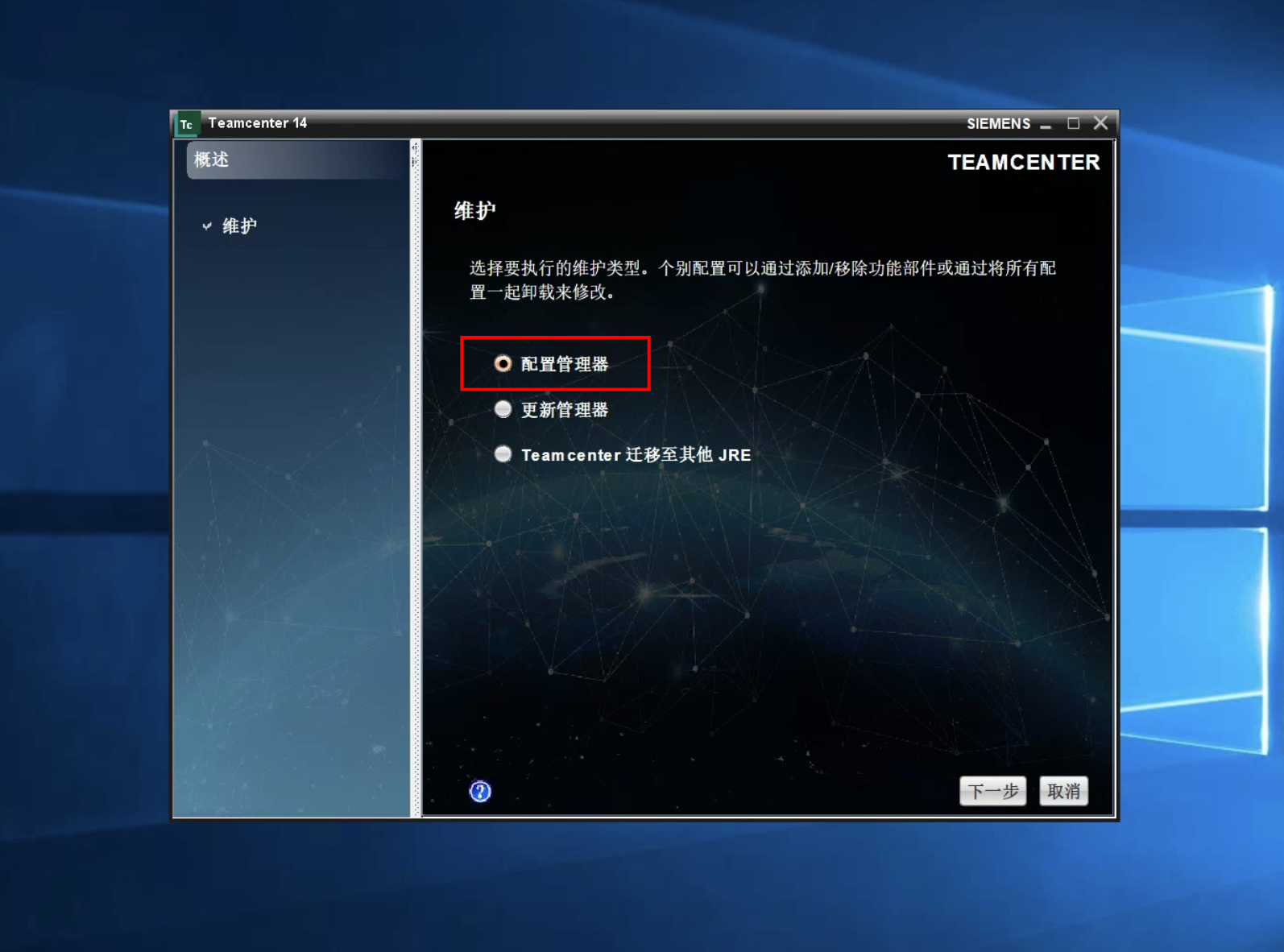
3. Select "Maintain Existing Configuration"
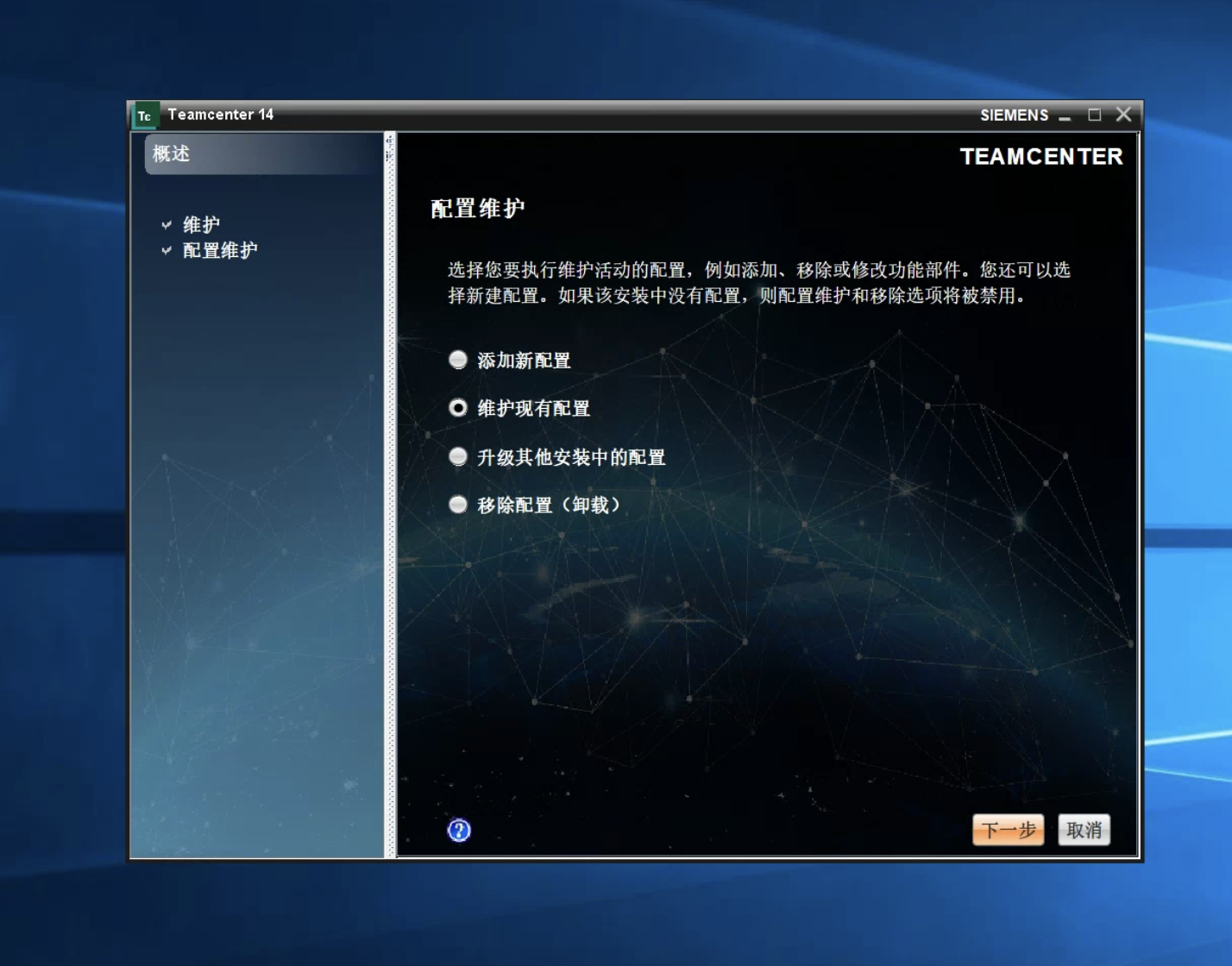
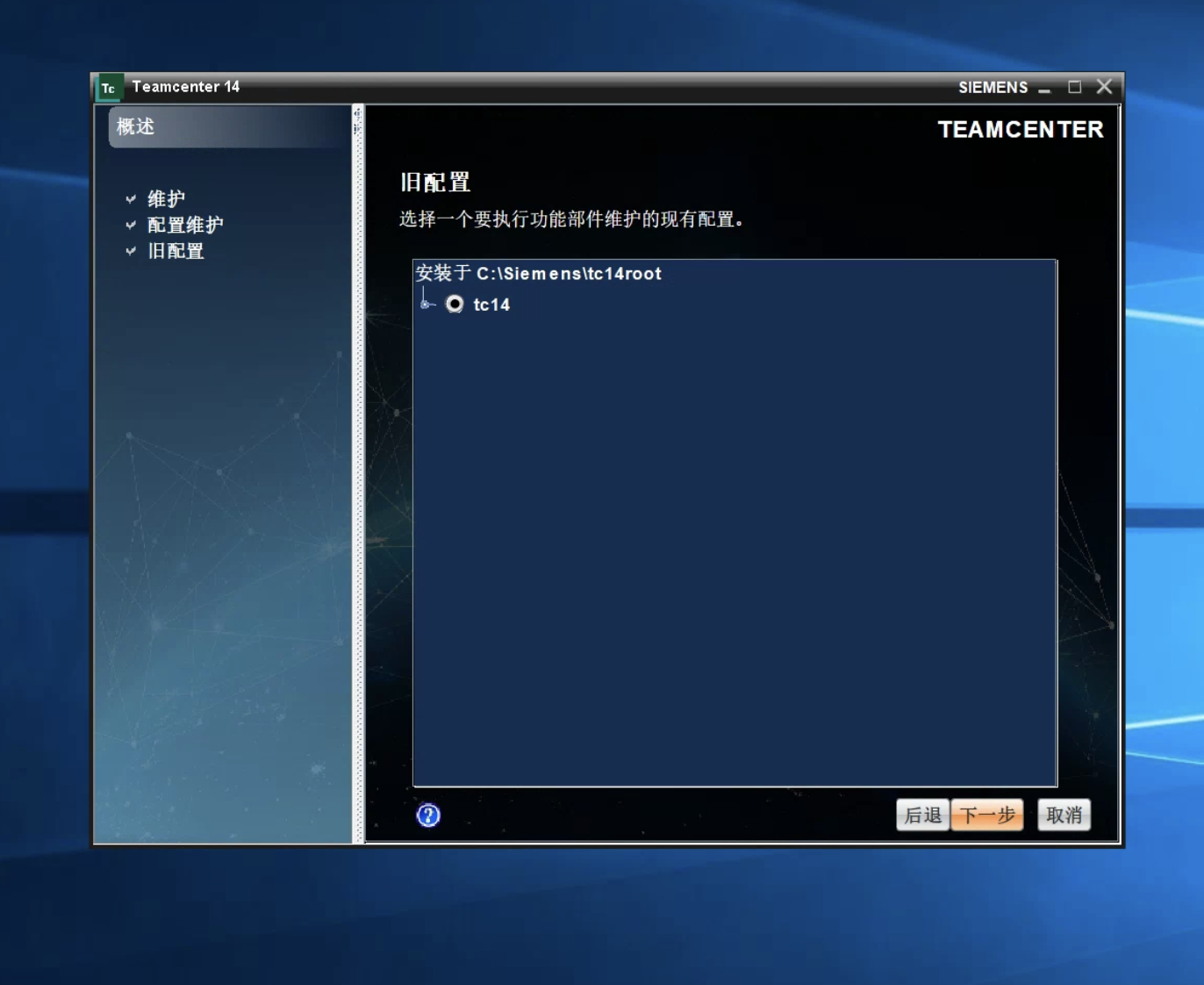
4. Select Your Existing Configuration
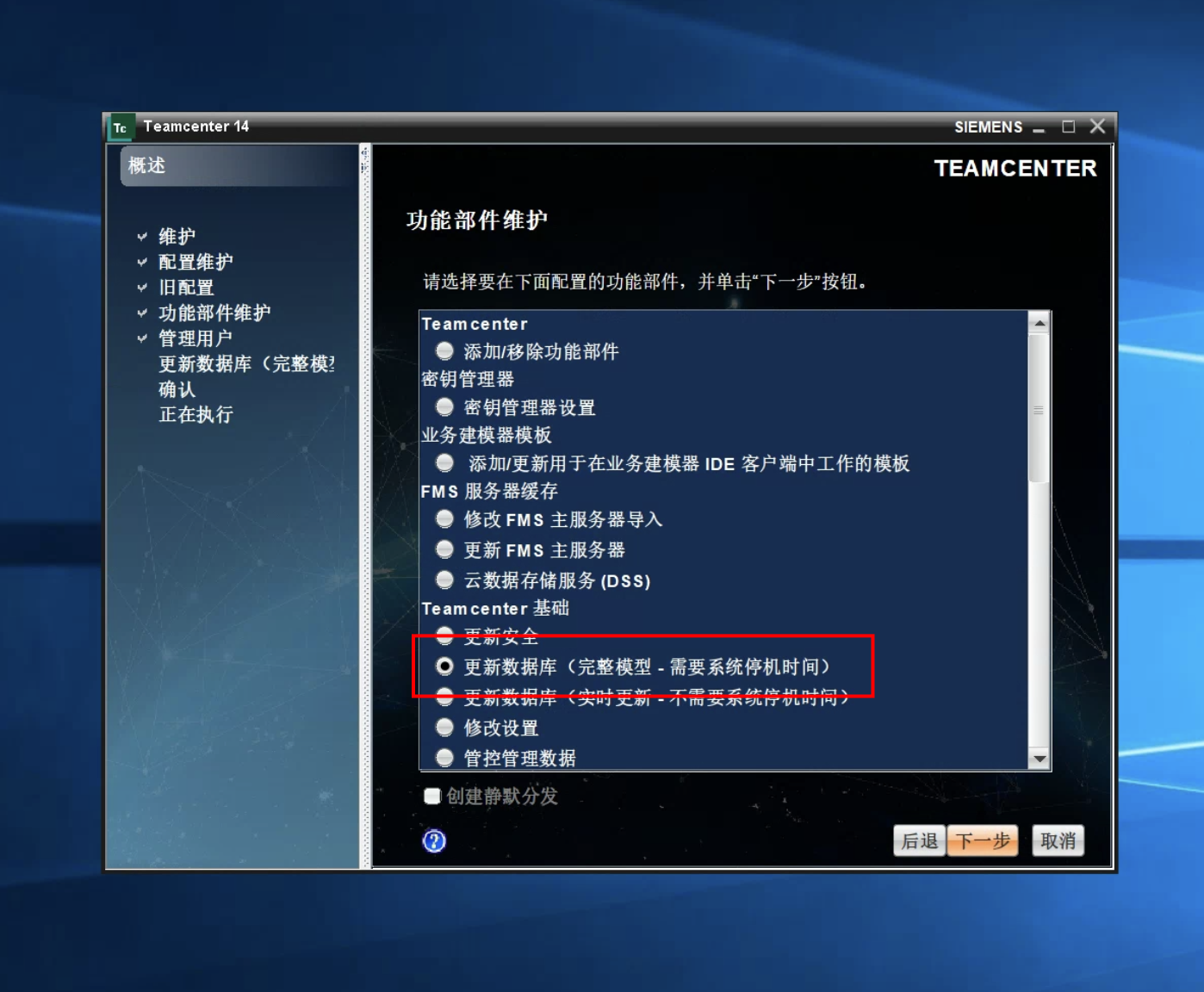
5. Select "Update Database (Full Model)"
⚠️Please close all TC services before updating, including two-tier clients, four-tier clients, AWC server, etc.
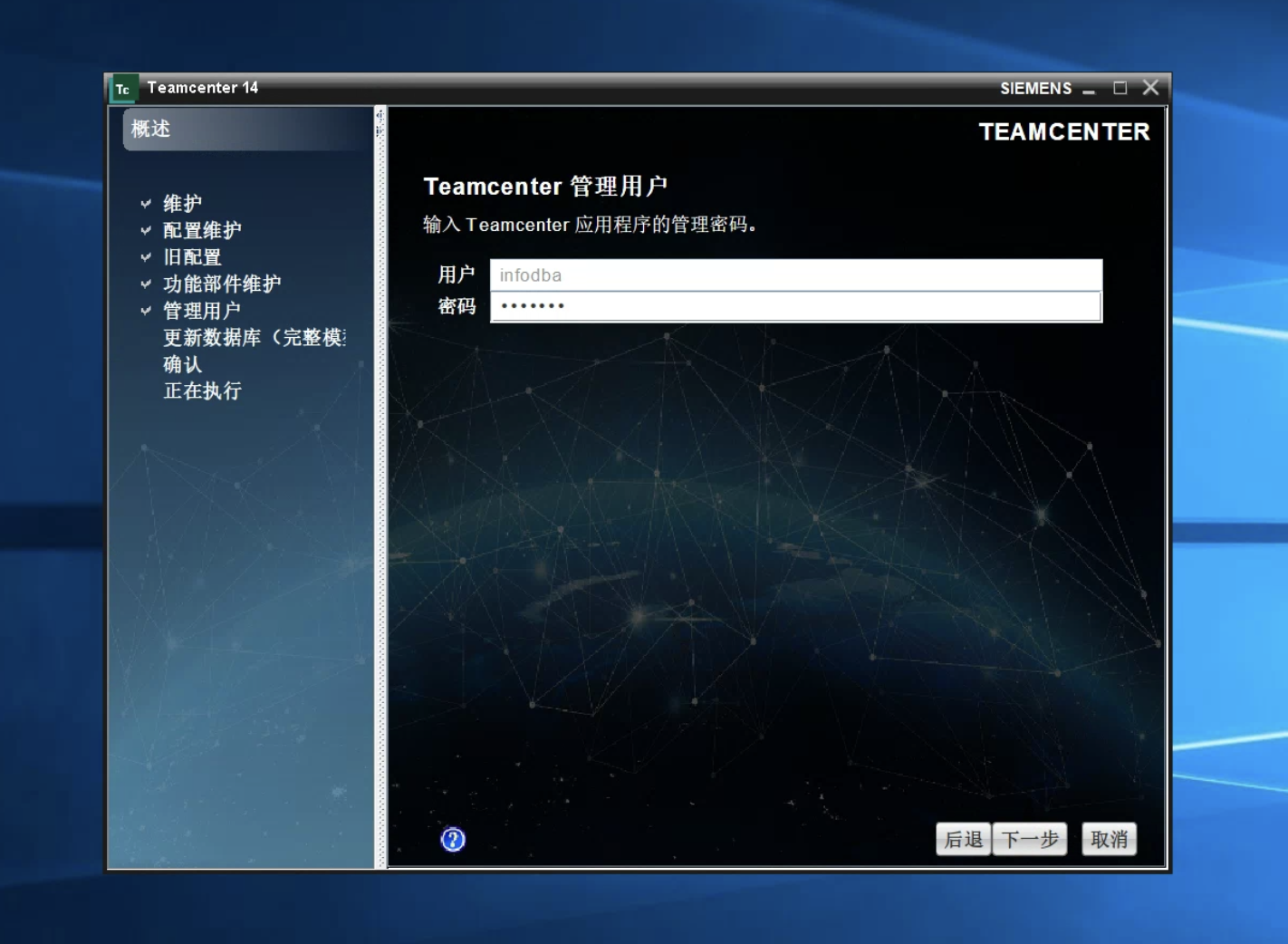
6. Enter Username and Password
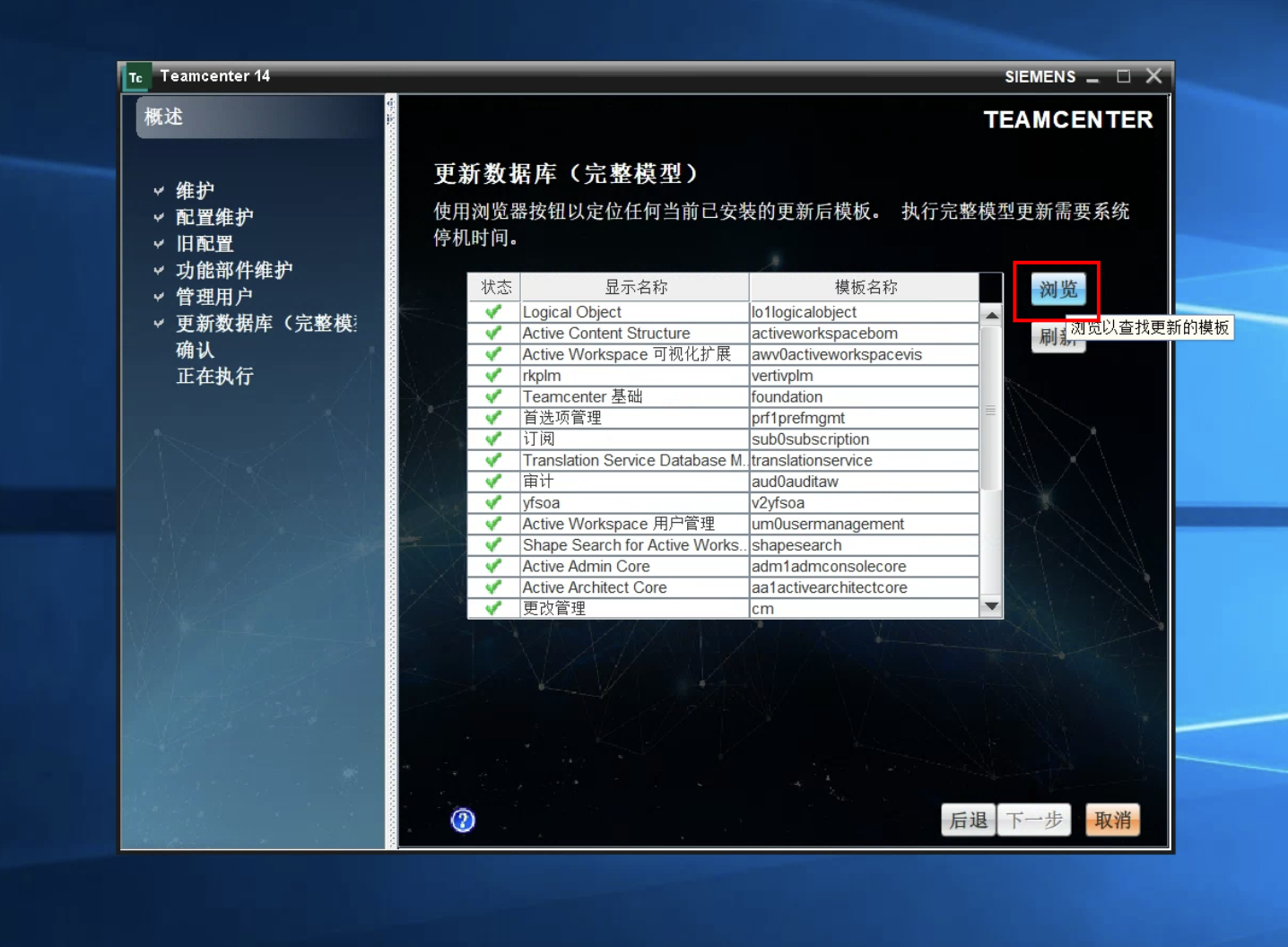
7. Select Update Template
- Select "Browse" file
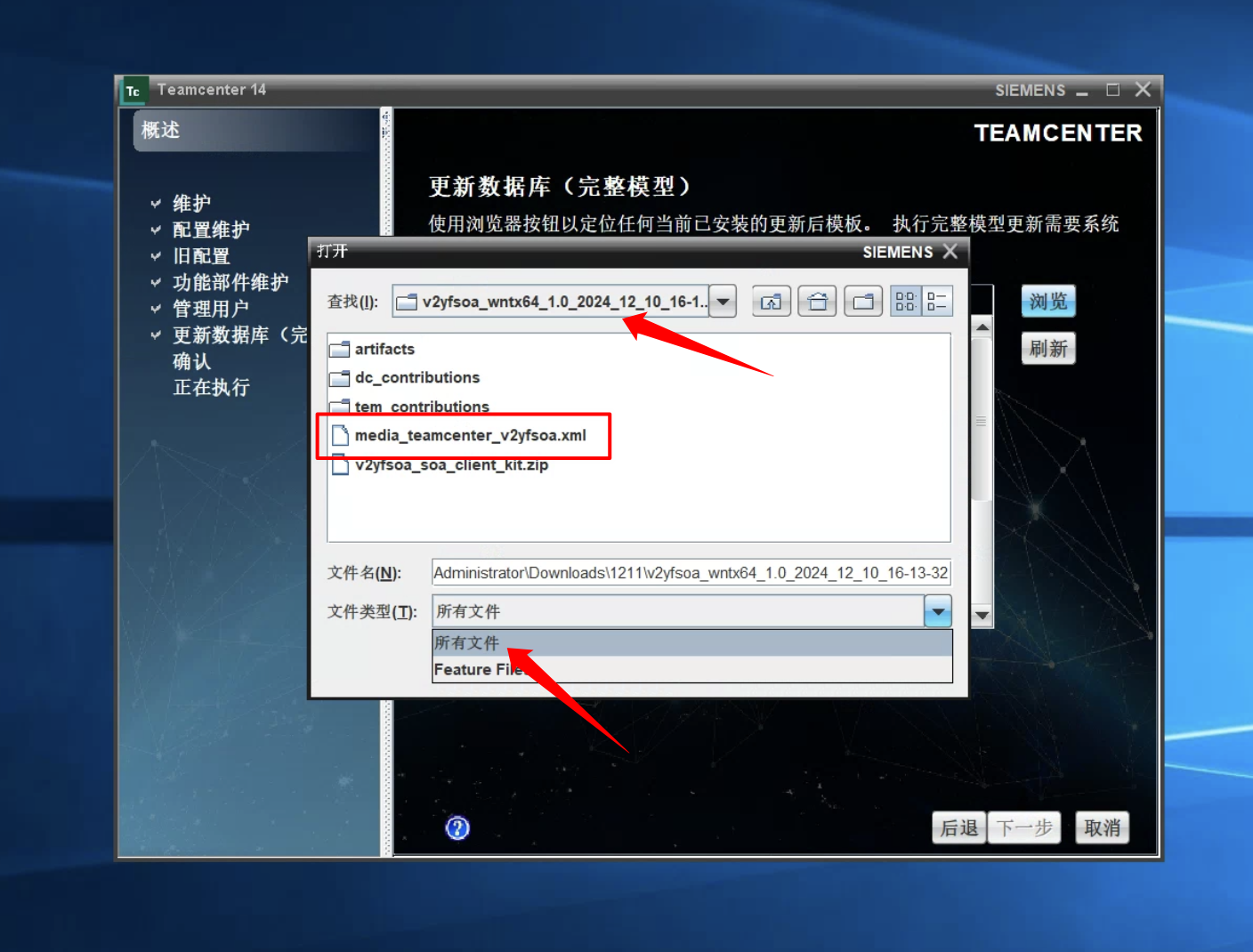
- Set file type to "All Files"
- Navigate to the path where the data model to be updated is located, select the
media_teamcenter_xxx.xmlfile
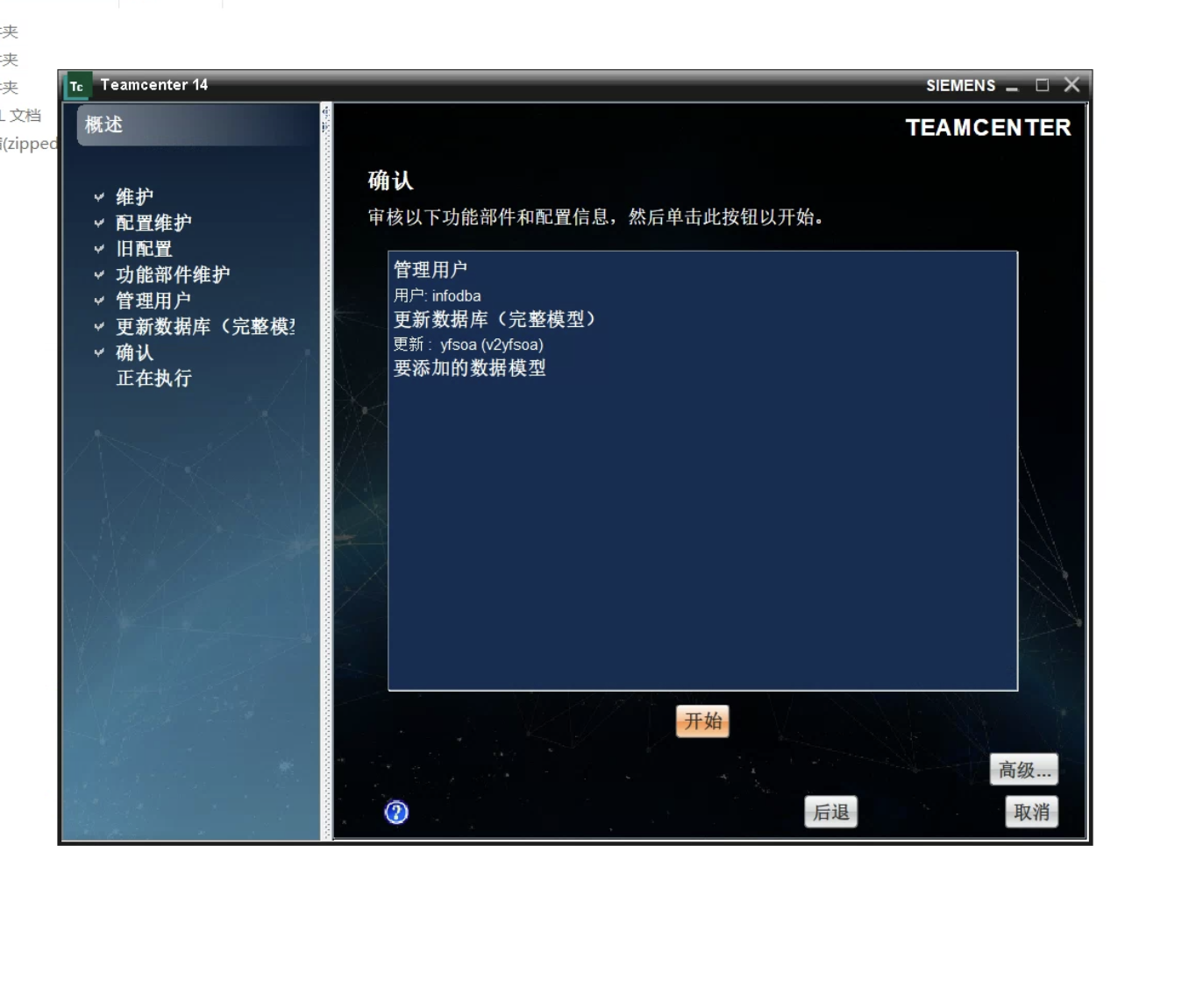
8. Confirm
⚠️Please make sure to confirm that your above steps are correct and all TC services have been stopped
9. (Optional) Virtual Machine Backup
Usually in the Siemens Teamcenter projects I've encountered, development environments are provided by implementation teams through VMware virtual machines.
So before the update starts, I usually take a virtual machine snapshot.
When encountering update errors, restore the snapshot and contact the data model provider.
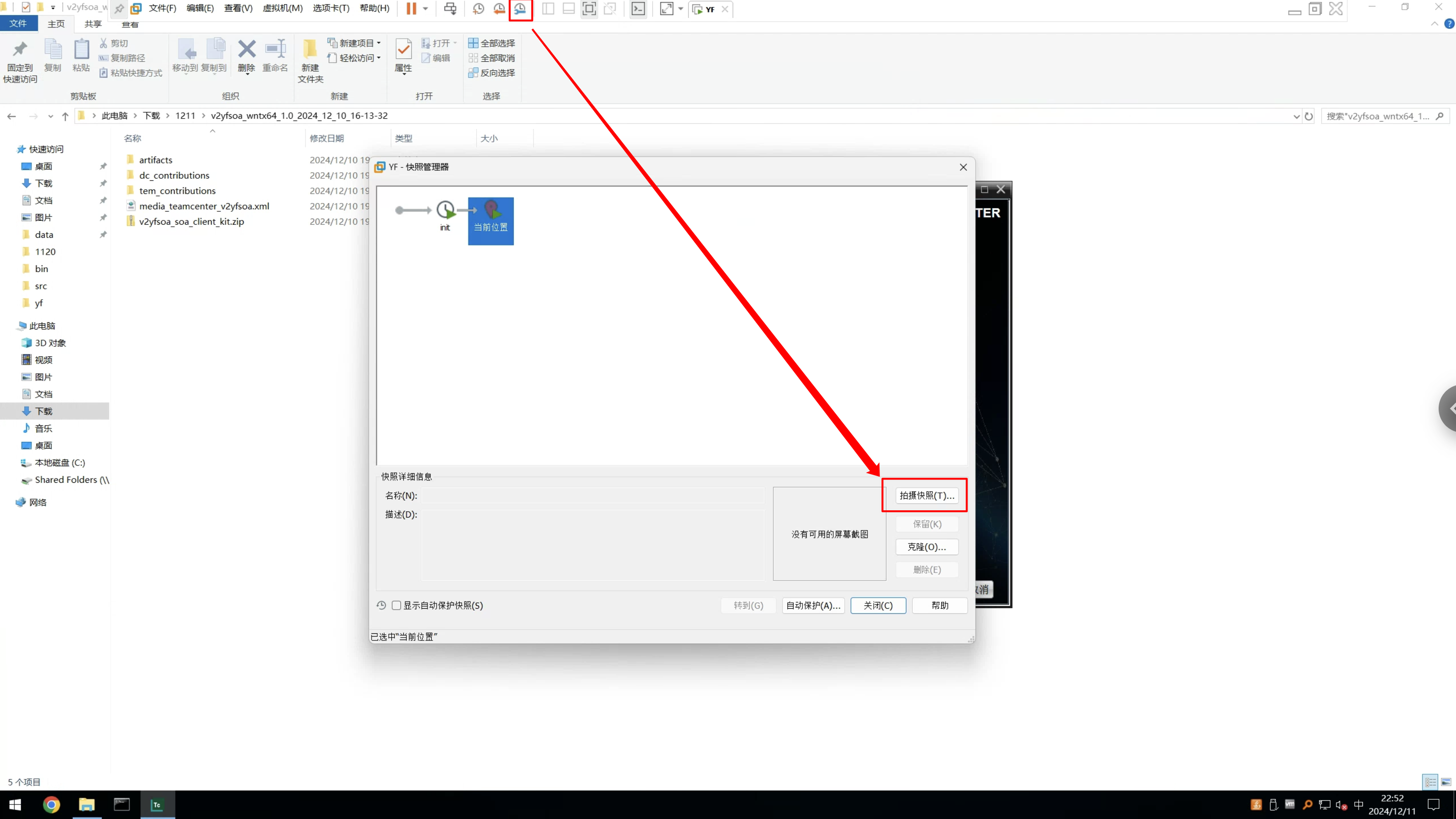
This is mainly based on past experience - update errors sometimes cause data model anomalies (or you can understand it as corruption). Even if you interrupt the update, Teamcenter runtime will still encounter many problems, which is quite annoying.
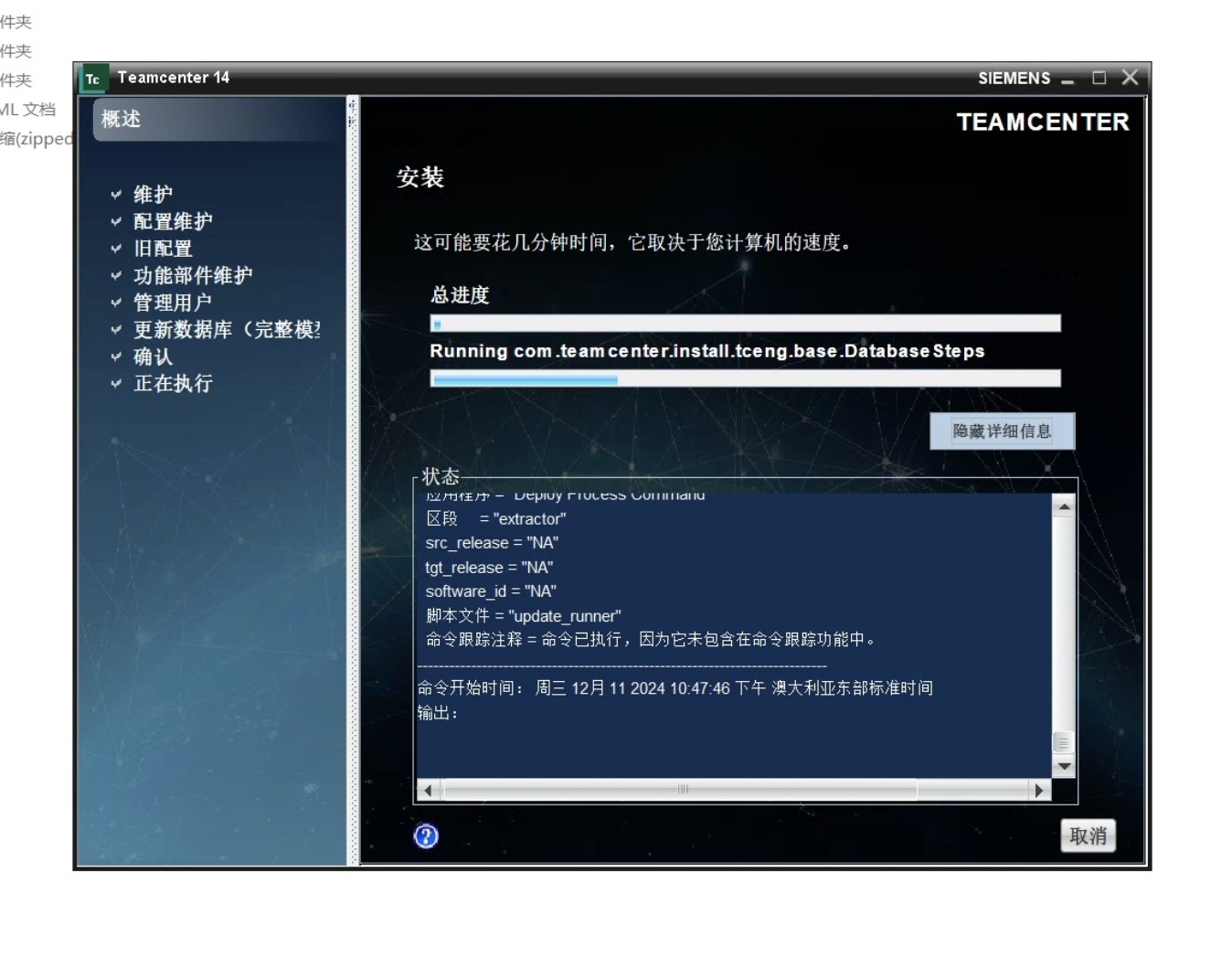
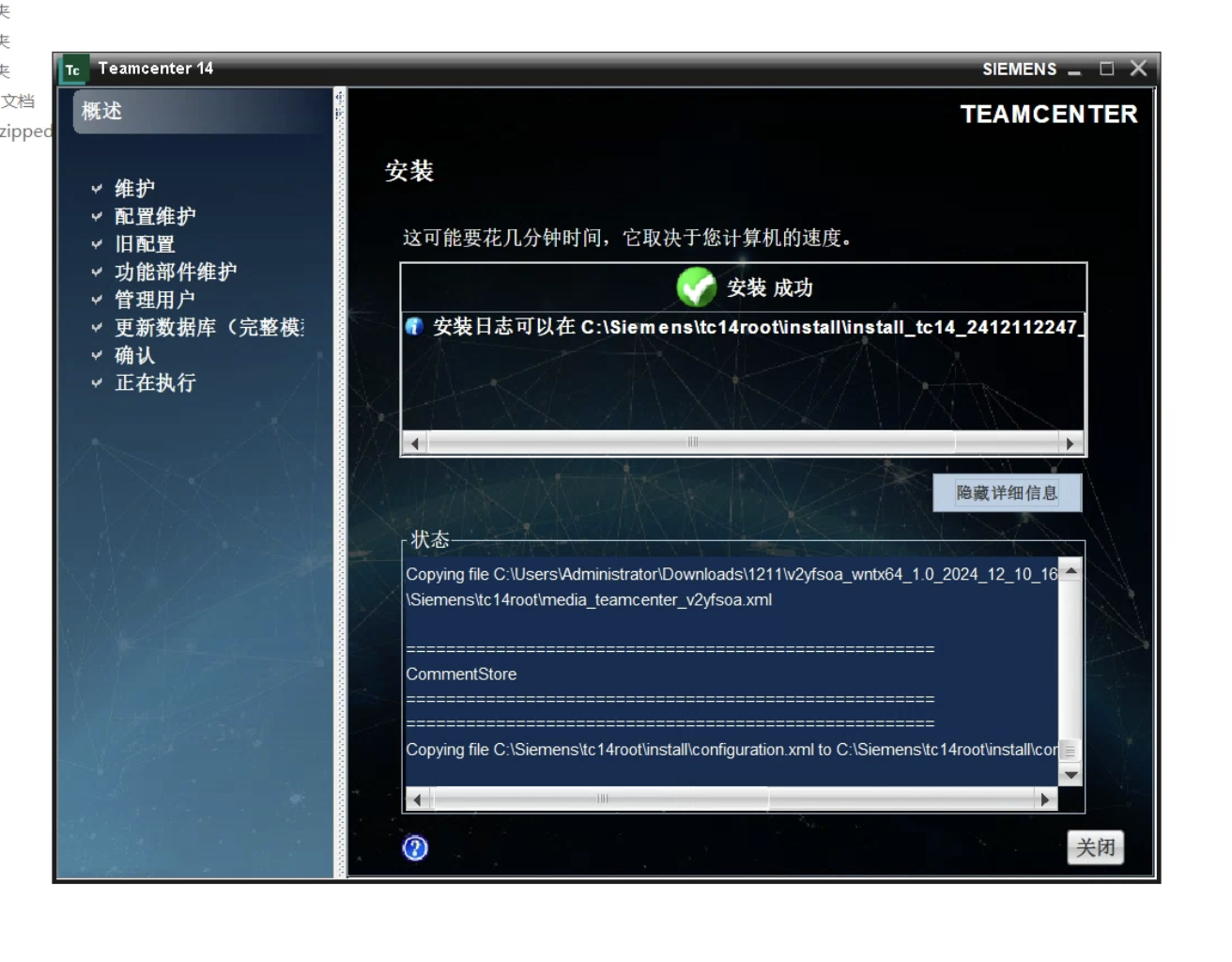
10. Update Complete
If you see this "✅Installation Successful", then congratulations, the data model update has been completed successfully.


Update SOA Execution Files
- Find the
\bindirectory under the TC root directory, replace thelibv2soaxxx.dllfile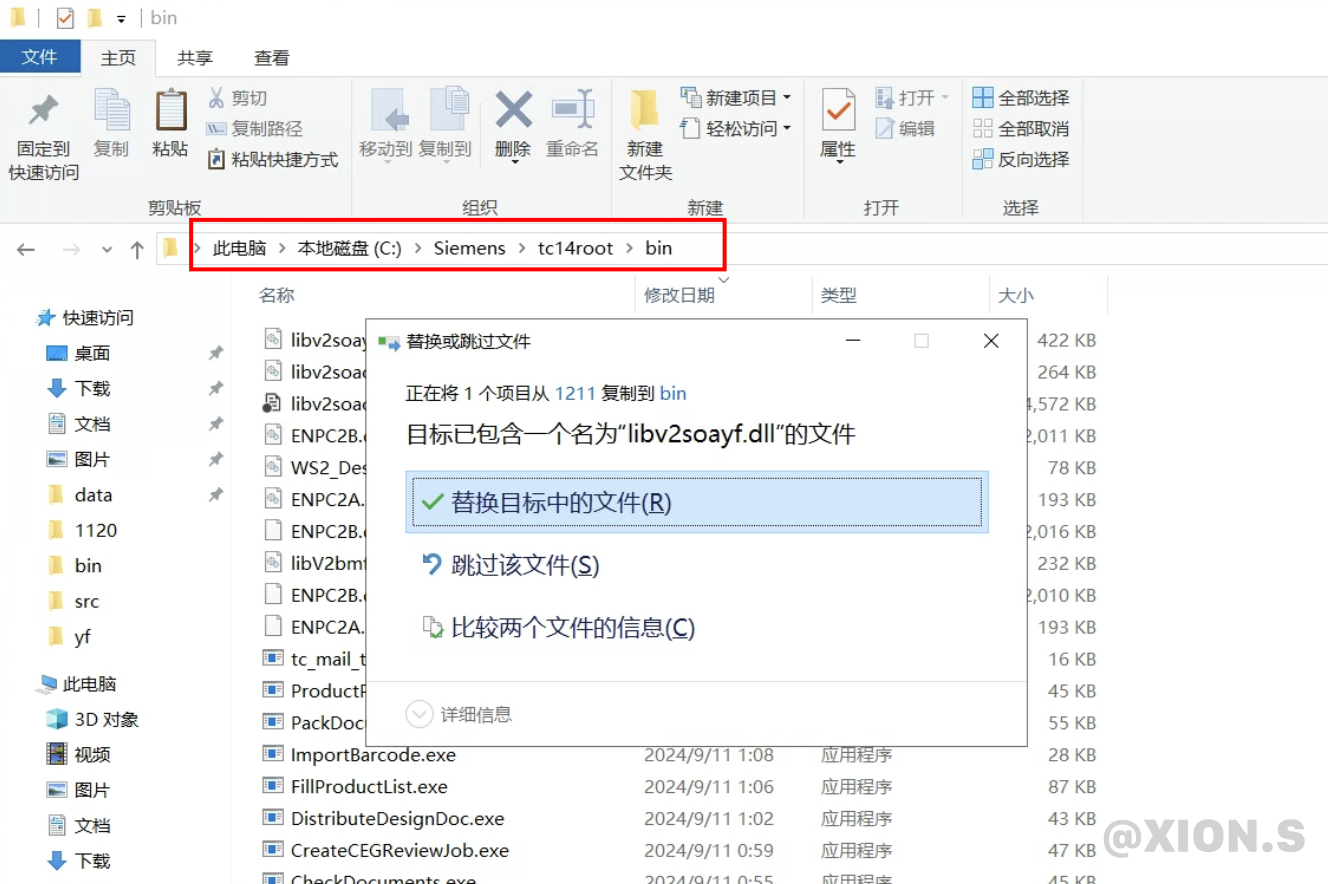
(Optional) Update SOA API Documentation
- Find the AWC project directory (usually
aws2/stage), executeconvertTemplate.cmd
 微信
微信 支付寶
支付寶